





Chemical analyses are central to many engineering workflows, from evaluating produced-water chemistry to investigating mineral scale formation across multiple wells. Much of this information is already held in Microsoft Excel, where laboratory measurements are recorded, sample data is organised and results are prepared for further evaluation.
Transferring that information into OLI Studio has traditionally required manual data entry, creating additional work before the chemistry calculations can begin. When new sample data becomes available, the process may need to be repeated, increasing the potential for transcription errors.
OLI Version 12.7 introduces Microsoft Excel import and export functionality for selected objects in OLI Studio: Stream Analyzer and OLI Studio: ScaleChem. The update allows users to bring existing chemistry data into OLI Studio, update analyses as new information becomes available and export calculated results to Excel for further evaluation.
Connecting Excel with OLI Studio
Version 12.7 introduces a file-based exchange between Microsoft Excel and supported OLI Studio objects, allowing information to move between the two applications without manually reproducing the data.
Importing and updating analyses
Users can import supported data from Excel to create new OLI Studio objects or update existing ones. For workflows involving routine sampling, this makes it easier to incorporate new measurements into an analysis without rebuilding the underlying model.
The functionality supports analyses involving water, brine, gas and oil compositions, including streams with pseudocomponents.
Exporting inputs and results
Modeling inputs and calculated results can also be exported to Excel, where teams can compare cases and incorporate their findings into established reporting processes.
The underlying chemistry calculations remain within OLI Studio. Excel continues to provide a familiar environment for organising data and working with results beyond the simulation.
Excel data import/export in practice
To illustrate the workflow, we use produced water analyses from ten wells in the Corvara field, CRV-01 to CRV-10. The data is organised in Excel in the way laboratory results are commonly reported, with one row per well and columns for sample temperature and pressure, measured pH, dissolved CO2 and H2S, and the major and minor ions in mg/L.
Instead of entering each analysis in ScaleChem by hand, the data is copied from the existing spreadsheet and pasted directly into the OLI Studio Excel import template, with one row per sample. The data does not need to be reorganised first, because the cations, anions and neutral species can be listed in whatever order the user’s original file uses. Each row also includes the fields that define how ScaleChem treats the analysis, such as the measured pH, the sample temperature and pressure with their units, the concentration basis, the electroneutrality option and the reconciliation type (Figure 1).
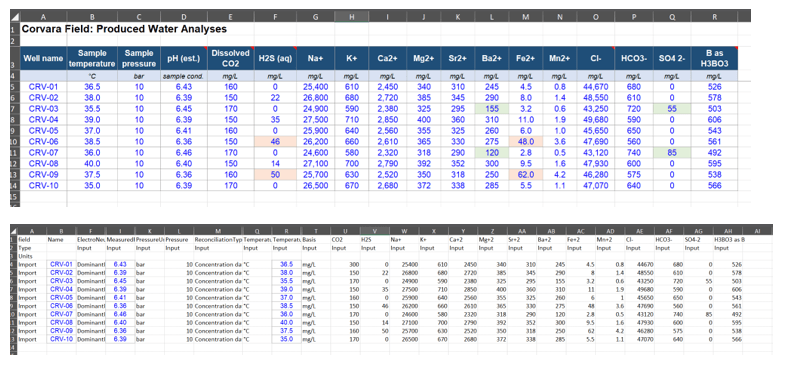
Figure 1: Corvara produced water analyses as reported (top) and the same data pasted into the OLI Studio import template (bottom).
The completed template is then imported through File > Import > Excel File. In a single step, ScaleChem creates a separate brine analysis for each row and names it after the corresponding well, so the ten Corvara samples appear in the Navigator as CRV-01 to CRV-10 (Figure 2). Each analysis opens with its sample temperature, pressure and pH already entered, together with the reconciliation option selected in the template, which in this example uses concentration data only.
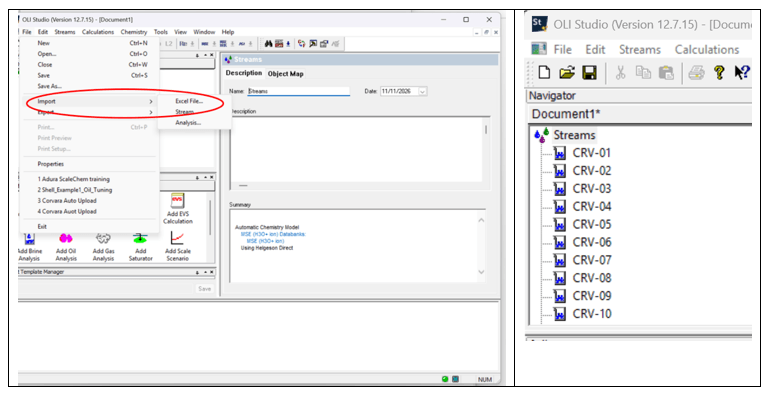
Figure 2: The File > Import > Excel File menu (left) and the ten brine analyses created automatically in the Navigator (right).
Once the analyses have been run the results can then be exported through File > Export > Excel File and used in existing reporting and evaluation workflows.
Previously, each of these analyses would have been entered into ScaleChem field by field. With Version 12.7, all ten are created in one import, and when new samples become available, the spreadsheet can be updated and the streams imported again rather than rebuilt in the software.
Supported functionality in Version 12.7
Excel import and export is initially available for selected objects in OLI Studio: Stream Analyzer and OLI Studio: ScaleChem.
| Object | Supported functionality |
| Stream | With or without pseudocomponents |
| Water Analysis | Measured pH, alkalinity, total inorganic carbon (TIC), total dissolved solids (TDS), density, specific electrical conductivity and reconciliation calculations |
| Single Point Calculations and Results | Isothermal, Set pH, Bubble Point, Dew Point, Vapor Amount, Vapor Fraction, Isochoric, Precipitation Point, Composition Point and Reconcile Alkalinity |
| Brine Analysis | Supported |
| Gas Analysis | Supported |
| Oil Analysis | With or without pseudocomponents |
This initial implementation covers commonly used fluid analyses and selected single-point calculations. Support is limited to the listed objects rather than every calculation or application in the OLI software portfolio.
Making chemistry data easier to work with
Excel import and export in Version 12.7 improves how existing analytical data and calculated results move through engineering workflows, while retaining OLI Studio’s established chemistry modeling functionality.
For users managing regularly updated fluid analyses or incorporating simulation outputs into wider reporting processes, the update provides a more straightforward way to work with information across both applications.
Explore Excel import and export in OLI Studio V12.7
Version 12.7 is available to download now.